Why Is My Dash Cam Not Turning On? Troubleshoot Your Dash Cam Power Issues
Your dash cam helps keep you safe by recording the road while you drive. But if your dash cam won’t turn on, it can feel stressful—especially when you count on it to catch important moments. This guide will help you figure out the main reasons why your dash cam might not turn on and you’ll learn helpful ways to fix it. From power issues to memory card problems, you’ll find clear tips to get your dash cam working again.
Power Supply & Connection Issues behind Dash Cam Not Turning On
If your dash cam does not turn on, the most common reason is a problem with power. You need to check the power source and how everything is linked up to find the issue.
For Plug-In Dash Cams
Check the USB or 12V cable: If your dash cam is not turning on, the cable could be broken or not connected right. Try a different cable that you know works to see if that solves your power problem.
Look at the car’s 12V socket: If you plug your dash cam into your car’s lighter socket, make sure the socket gives power. Try plugging in another device, like your phone charger, to check if the socket works.
Loose or broken power connection: Sometimes, the plug does not fit snugly in the socket, stopping your dash cam from turning on. Make sure the connection is tight and not wobbly to keep the power flowing.
For Hardwired Dash Cams
Check wiring connections: If your dash cam is hardwired into the car, check the wires are all connected well. A loose wire can easily be the reason your camera isn’t turning on.
Check the fuse: In dash cams that are hardwired, a blown fuse can cut off power. Look at the fuse and change it if it’s burnt so your dash cam gets power again.
Once you look over these things, your dash cam should work as long as it is getting power. Always check the basics before thinking your camera is broken.
Memory Card Interruptions Leading to Dash Cam Not Turning On
A lot of dash cam problems come from the memory card, so it’s smart to check it if your camera doesn’t turn on.
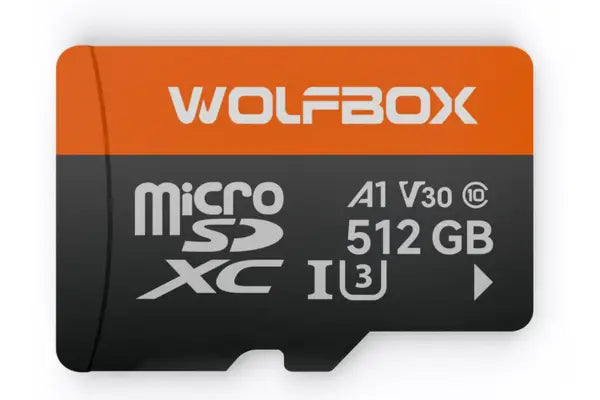
Corrupt or unsupported SD card: If your SD card is too old, damaged or the wrong type, your dash cam might not start up. Take out the card and format it in your dash cam or on your PC using FAT32 to see if that helps.
Fake SD cards: Some memory cards look real but do not work well. If you use a cheap or fake card, your dash cam might not record or turn on at all. Always pick a good brand for your SD card to avoid these problems.
Full or locked memory card: If the memory card is full or in locked mode, your dash cam might stop working. Make sure your SD card isn’t full of old videos and is unlocked or use loop recording so new clips can replace the old ones.
To stop memory card problems before they start, format your SD card often and swap it out for a strong, high-endurance card when you need to.
If things aren’t set up right, you could have issues such as your dash cam turning off or not recording the way you want.
Loop recording disabled: If you don’t have loop recording turned on, your dash cam will stop once the memory is full. Make sure you have loop recording on so your dash cam keeps working by replacing old footage.
Short recording times: If the camera is set to record very short clips—like just one minute at a time—it could lead to error files. Try changing this setting to record longer clips, like 3 or 5 minutes, for better results.
G-sensor sensitivity too high: When the G-sensor is set too high, every small bump can lock a video as an emergency file, filling up the memory. Lower the G-sensor sensitivity so it only saves important clips.
Motion detection confusion: Some dash cams only record when they sense motion which may work for parked cars but not driving. Make sure motion detection is turned off when you’re on the road.
Checking your settings just takes a moment and can stop a lot of problems. Good settings help your dash cam work the way you expect.
Firmware Bugs & System Glitches Preventing Startup
Sometimes it’s the software inside your dash cam that causes issues and stops it from turning on.
Outdated firmware: If your dash cam is using old firmware, it might not turn on or could be buggy. Visit the dash cam brand’s website to see if your model can be updated which can fix many bugs.
Software glitches: If your dash cam’s software crashes, it might freeze and stop recording. Turn your dash cam off and on again to see if it works.
Faulty camera lens: If your dash cam’s lens is broken or dirty, this can cause the dash cam not to work as it should. Clean the lens and make sure it isn’t cracked or damaged.
Battery problems: Some dash cams have a battery inside. If the battery is dead, the camera won’t switch on. Try charging the battery or changing it with a new one.
If nothing helps, doing a factory reset or powering off and on can sometimes clear away problems.
Verify the Dash Cam’s Compatibility
Dash cams don’t always work if they aren’t compatible with what you plug them into.
Incompatible power sources: If you use a USB port or wall plug that doesn’t give enough power, your camera might not work. Check the power specs in your dash cam guide and use only what is recommended.
Accessory compatibility: Not every charger or power lead will suit your dash cam. Make sure any gear you use matches your model so everything works together.
If you aren’t sure if something is compatible, try your dash cam in another car or read your camera’s manual for help.
Temperature Effects on Dashcam Not Turning On
Your dash cam is also affected by temperature and this can cause it to stop working.
Heat damage: If you leave your dash cam in a hot car, the heat can make it shut down or break after a while. Try parking in the shade or take the dash cam with you when you leave.
Cold weather: When it’s freezing, your dash cam could stop working or not turn on. Let your dash cam warm up a little before trying to use it in very cold weather.
Pick a high quality dash cam, such as Wolfbox, that works well whether it’s hot or icy cold. These models are less likely to have problems in tough weather.
Quick Troubleshooting Checklist for Dash Cam Power Issues
Use this simple checklist to quickly find and fix power issues with your dash cam.
Check your power cable and outlet. Make sure everything is plugged in right and your dash cam is getting power.
Format or swap your SD card. Try a new memory card or format the one you have to stop errors.
Adjust loop recording and G-sensor settings. Set these features up so your dash cam records all you need without stopping.
Update the firmware. Visit your dash cam’s brand online and install the latest firmware to prevent glitches.
Test for temperature issues. Make sure your dash cam isn’t too hot or too cold as this can affect how it works.
Running through this checklist can help you get your dash cam back up and running quickly.
Wolfbox Dash Cams: Reliable and User-Friendly
If you’re tired of dash cams giving you problems, you may want to try Wolfbox dash cams. Wolfbox makes easy-to-use cameras that are reliable, record high-quality video and work in different weather conditions. These dash cams are simple to set up, come with firmware updates and are built for smooth, steady driving.
Feature
Standard Dash Cam
Wolfbox Dash Cam
Loop Recording
Sometimes buggy
Always works smoothly
Firmware Updates
Rare
Regular and stable
Video Clarity
Decent
Excellent, even at night
SD Card Support
Limited
Supports high-endurance
Parking Mode
Not always there
Built-in with motion detection
Conclusion
Now you know the main reasons your dash cam may not turn on and how you can fix it. From power problems and SD cards not working, to settings and simple checks, these issues are easy for you to solve. By keeping up with basic care—like updates and checking cables—you can help your dash cam last a long time. If you want a dash cam that you can count on, Wolfbox has great options that are also easy to use.
FAQs
Why is my dash cam not always recording?
Your dash cam might miss recordings if the power is weak, your SD card is full or bad or loop recording is turned off. Check these things first to sort out recording issues.
How often should I update dash cam firmware?
Check for new firmware every few months or whenever a new version comes out. Updates help fix problems and keep your dash cam in good working order.
Can a bad SD card stop my dash cam from turning on?
Yes, a bad SD card can make your dash cam refuse to start. Always use a tough, high-endurance card and format it whenever you need to.
Is temperature really a big factor in power issues?
Yes, both hot and cold can make your dash cam stop working. Get a dash cam suited for your weather and you’ll avoid many common problems.