








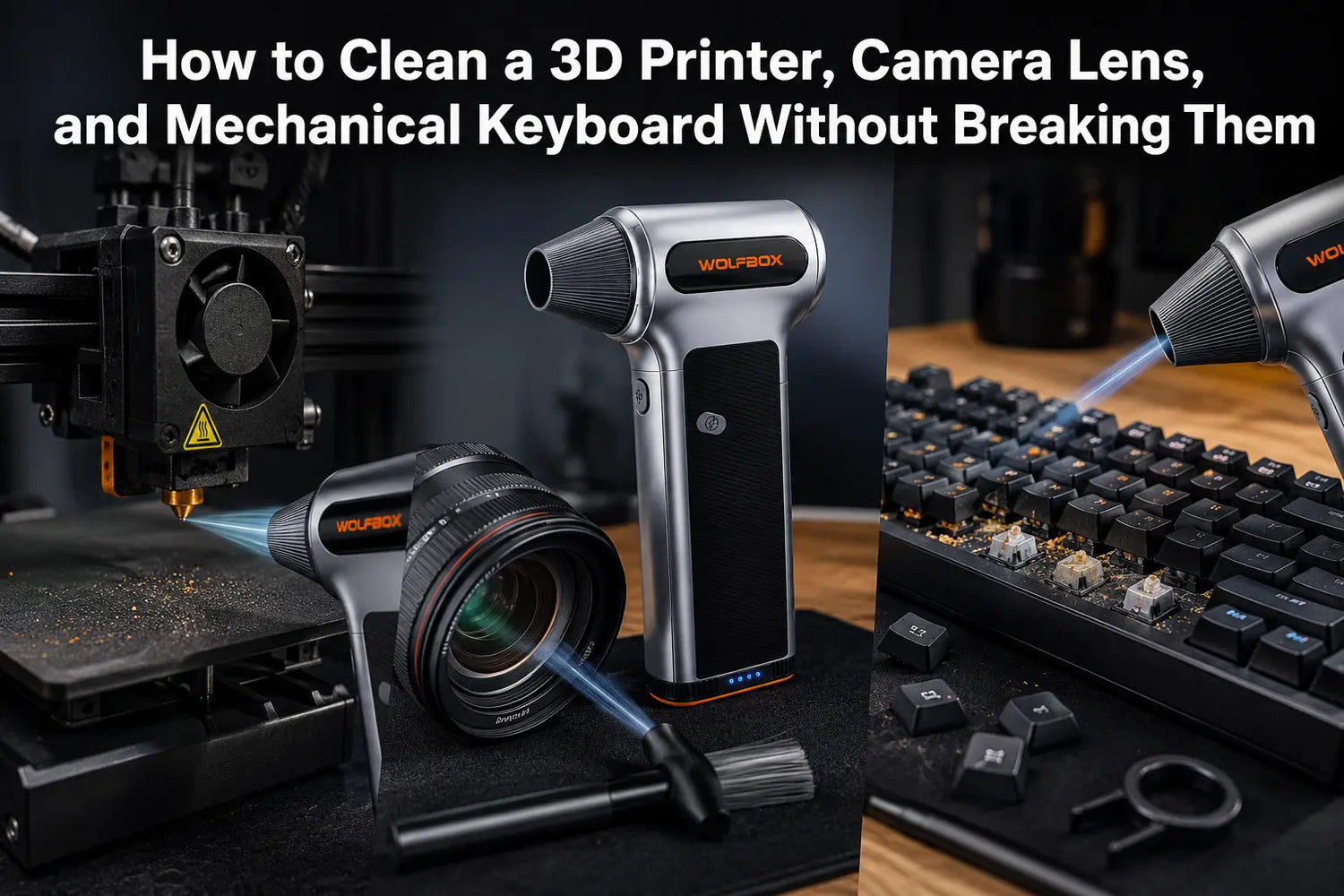
Electric air dusters work well on most surfaces — but a handful of components have specific failure modes when airflow is applied at the wrong speed, distance, or angle. Camera coatings can be scratched if grit is driven across the glass. 3D printer nozzles can be compacted by debris blown directly into the opening. Mechanical switch stems can be stressed by sustained high-speed air at close range with the housing exposed.
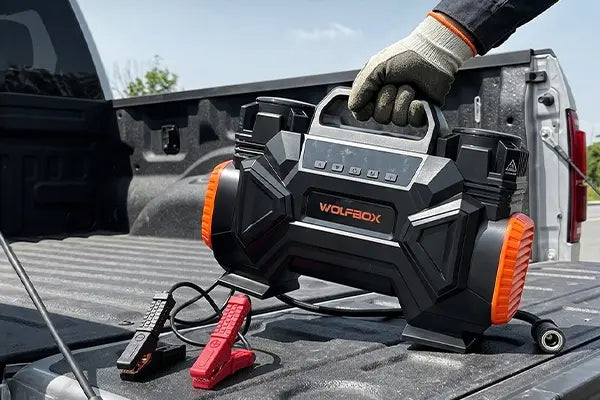
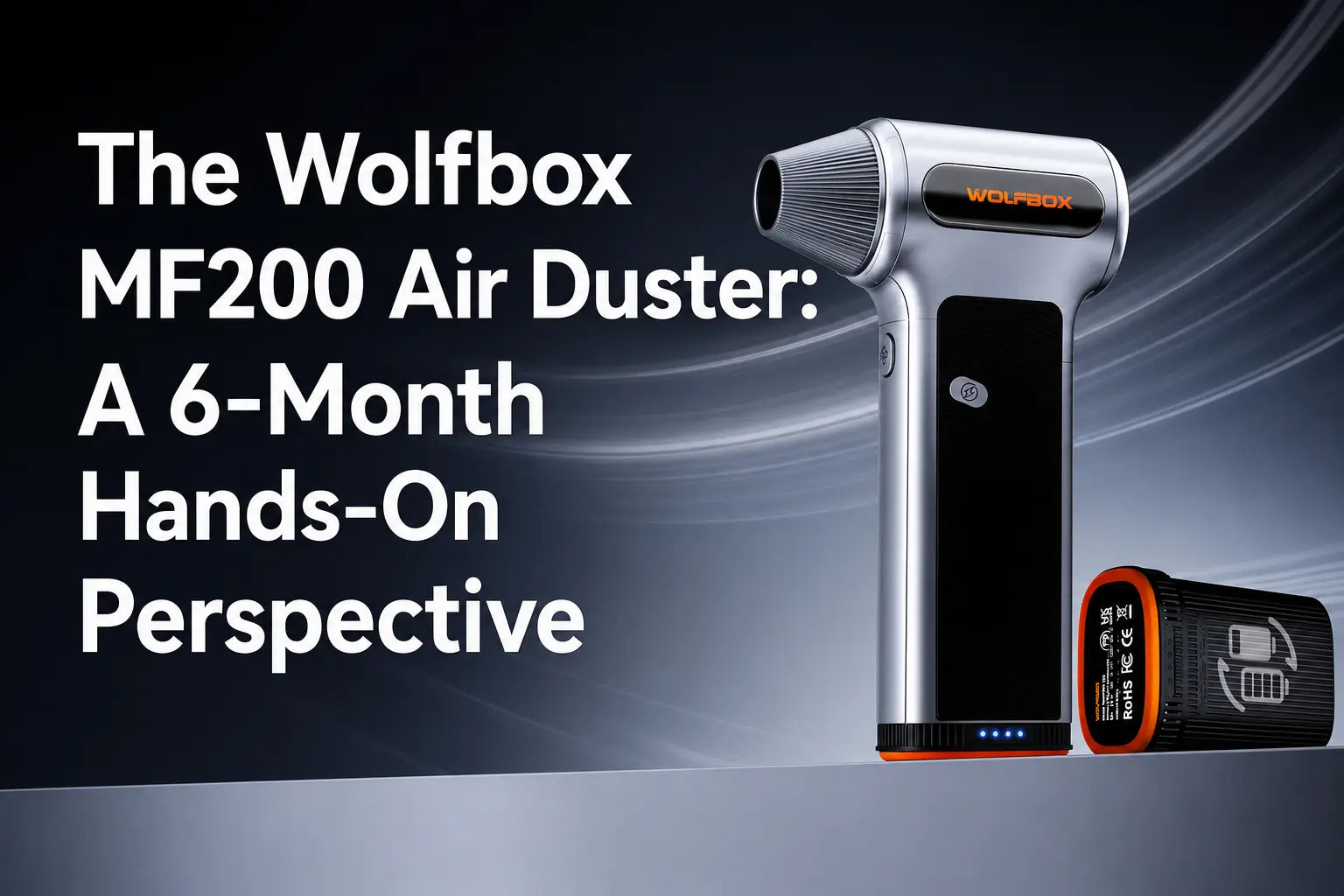
This guide uses the Wolfbox MF200 as the reference unit — it runs to 87.5 m/s (190 MPH) across three speed gears with a runtime of 10 to 100 minutes depending on the gear.¹⁹ The guidance below applies to any variable-speed electric air duster.
Speed and Distance: The Variables That Actually Matter
|
Gear |
Airflow Range |
Right For |
Risk Zone |
|
Gear 1 (Low) |
Low fraction of 87.5 m/s |
Camera exteriors, exposed switch stems, lens mount interior |
Bare glass if grit is present at close range |
|
Gear 2 (Medium) |
Mid-range |
3D printer nozzle area, keyboard surface, print bed |
PTFE push-fit tube connectors; anything loosely attached |
|
Gear 3 (High) |
Up to 87.5 m/s / 190 MPH |
PC heatsink fins, case filters, car vents |
Anything held too close; powered-on electronics |
Camera Equipment: What You Can and Cannot Do
High-velocity air doesn't strip lens coatings under normal use, but it does propel grit particles across the glass surface — and that scratches. The risk is not the airflow itself, it's what the airflow moves. Applying air to a dirty lens without first knowing what's on it is the actual problem.⁵⁷
- Lens barrel and camera body exterior: Gear 1 at 3–5 inches, circular sweep around the barrel. Do not aim at the front element.
- Lens mount interior (mirror box): Gear 1, camera slightly downward, short bursts. Debris should fall out under gravity.
- Camera sensor glass: do not use an electric air duster. Use a dedicated rubber bulb blower or professional sensor cleaning kit. Electric dusters produce more turbulence and static than a sensor surface needs.
- Zoom and focus rings: a soft brush first, then Gear 1 to clear residual particles.
Air dusters cannot remove smudges, fingerprints, or oil. Those require lens cleaning solution and lint-free cloth. Air dusters are strictly for dry, loose particulate.

Mechanical Keyboards: Surface vs Switch Housing
Keyboard debris accumulates in two places:⁴⁶⁸ the visible surface between keycaps, and the less visible space inside switch housings. Both zones are accessible with an air duster, but require different handling.
- With keycaps on: hold the keyboard inverted over a trash can and tap the underside first — gravity handles most loose crumbs. Then Gear 2 at 2–3 inches, sweeping along each row. Debris exits from the sides.
- With keycaps removed: Gear 1 only. Switch stems extend above the housing when keycaps are off. Short bursts at 3–4 inches. Sustained high-speed air at close range with stems exposed stresses the stem-to-housing fit over time.
- After cleaning: type across the full board. A switch that now sounds or feels different ('scratchy' or 'sticky') may have fine debris redistributed rather than cleared. Repeat from a different angle.
3D Printers: The Nozzle Angle Problem
The failure mode here is simple and worth stating clearly: if there is any partial clog at the nozzle exit and you direct airflow perpendicular into the opening, you compact the clog rather than clearing it. Approach the nozzle from the side — parallel to the exit surface, not pointing into it.²
|
Zone |
Gear |
Distance |
Technique |
|
Nozzle exterior / heat block |
Gear 2 |
3–4 inches |
Tangential to nozzle exit. Never aim directly into the opening. |
|
Extruder gear / filament path |
Gear 1 |
3–4 inches |
Short bursts to dislodge fragments. |
|
Print bed (glass or PEI) |
Gear 2 |
4–6 inches |
Cool to room temperature first. Sweep across the surface. |
|
PTFE tube connections |
Not recommended |
N/A |
Push-fit connectors can be dislodged by high-pressure air. Use a brush. |
|
Frame rails and gantry |
Gear 2 |
4–6 inches |
No sensitive components — straightforward. |
PC Components: Do This Outside
The single most effective thing you can do for PC cleaning: take the case out of your office before using an air duster.³ Cleaning inside means displaced dust settles back on adjacent surfaces — including back into your case vents. Outdoors, or at minimum a table away from the PC's normal position.³
- Power off and disconnect from wall power.
- Remove the case panel. Move to a well-ventilated area.
- Remove case air filters first. Clean them at Gear 3 from the back (clean-side out).
- Hold CPU cooler fans stationary with a finger or cable tie before applying air — free-spinning unpowered fans can exceed rated RPM under high-speed airflow.
- GPU heatsink: Gear 3 at 6–8 inches, card held vertically. Blow fin-to-fin, rotate 90° and repeat.
- RAM slots: Gear 1 at a slight downward angle so debris exits the slot.
- Replace filters and reassemble before powering on.

What Not to Clean with an Electric Air Duster
- Powered-on electronics — always power off and unplug before use.
- Wet or liquid-contaminated surfaces — airflow spreads the liquid.
- Camera sensor glass — use a dedicated rubber bulb blower and optical sensor swabs.⁷
- Hearing aids and in-ear monitors — pressure can damage speaker membranes.
Frequently Asked Questions
Q: Can I aim the MF200 directly at a camera lens front element?
A: No. Use Gear 1 on the lens barrel and exterior housing only. For the glass itself, use a rubber bulb lens blower — it applies gentler, more controlled airflow without the turbulence of a motorized duster.
Q: What gear is safe for keyboard switches with keycaps removed?
A: Gear 1 at 3–4 inches, short bursts. With keycaps on, Gear 2 is fine — hold the board inverted first.
Q: How do I clean a 3D printer nozzle without making a clog worse?
A: Approach from the side — parallel to the nozzle exit surface. Gear 2 at 3–4 inches. Never aim directly into the nozzle opening.
Q: Do I have to remove the GPU to clean it?
A: Recommended. Gear 3 in-situ works, but removing the card and holding it vertically gives better access to heatsink fins and keeps displaced dust out of the rest of the case.
Q: Is the Wolfbox MF200 safe for car vents?
A: Yes — Gear 1 or Gear 2 at 3–5 inches with short bursts. Have a surface ready to catch displaced debris, or do it outdoors.
Q: Why hold the CPU fan still before cleaning?
A: An unpowered fan spinning under high-speed airflow can exceed its design RPM. Hold it stationary with a finger or cable tie first.
Q: Can I clean a 3D printer bed while it's warm?
A: No. Cool to room temperature first. Cleaning a hot glass bed with an airflow surge risks uneven thermal stress, and the gradient on a PEI surface can affect adhesion coating over time.
References
[1] Wolfbox MF200 product page — 210 MPH, 6000 mAh, 3-gear, 4 nozzles, 10–100 min runtime: https://wolfbox.com/products/compressed-air-duster-mf200
[2] Prusa Research — nozzle residue cleaning guidance: https://help.prusa3d.com/article/nozzle-cleaning-failed-31834-core-one-35834-core-one-l-26834-mk4s-13834-mk4-27834-mk3-9s-21834-mk3-9-17834-xl_689429
[3] Tom’s Guide — how to clean a desktop PC safely: https://www.tomsguide.com/how-to/how-to-clean-a-pc
[4] Tom’s Guide — mechanical keyboard cleaning process: https://www.tomsguide.com/computing/keyboards/your-mechanical-keyboard-is-disgusting-heres-how-to-clean-it-properly-in-30-minutes
[5] Lensrentals — guide to cleaning your camera sensor: https://www.lensrentals.com/blog/2017/04/guide-to-cleaning-your-camera-sensor/
[6] iFixit — mechanical keyboard cleaning technique: https://www.ifixit.com/Guide/Mechanical+Keyboard+Cleaning+Technique/200140
[7] Canon Support — manual sensor cleaning warning against canned air or gas: https://support.usa.canon.com/kb/s/article/ART136495
[8] iFixit — keyboard cleaning kit components for keycap and debris cleaning: https://www.ifixit.com/products/keyboard-cleaning-kit
[9] Wolfbox air duster collection: https://wolfbox.com/collections/best-air-duster


Leave a comment
This site is protected by hCaptcha and the hCaptcha Privacy Policy and Terms of Service apply.