






WOLFBOX Brands
WOLFBOX Brands
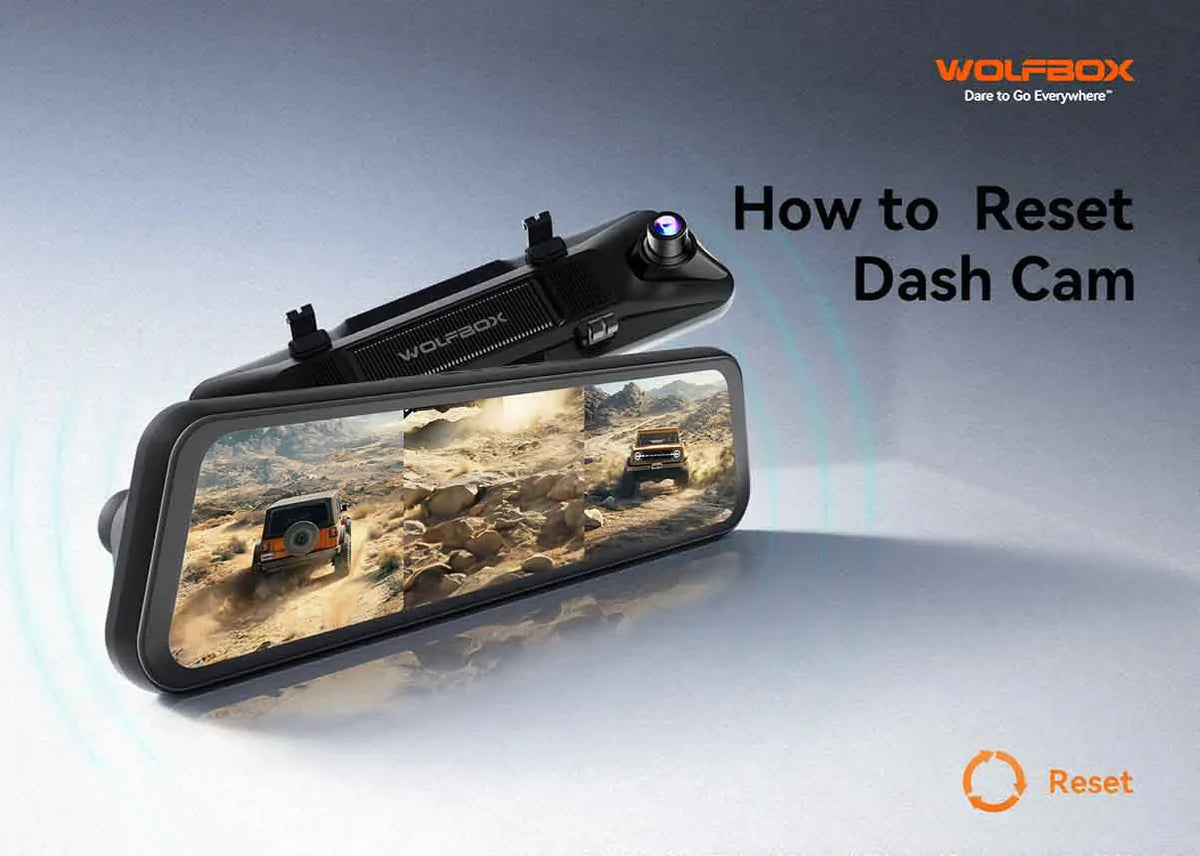
A dash cam lets you record what happens on the road, but sometimes you need to reset your camera. You can fix a lot of common problems if you know how to reset dash cam models. This guide shows you how to easily fix your dash cam so it works again.
Table of contents
Your dash cam doesn't always work right. A reset can often fix the problem when this happens.
Your dash cam's screen may freeze or the buttons may not work sometimes. This can happen because of a temporary problem with the software. A simple reset usually fixes the problem and lets you use your camera again without any more problems.
The software that runs your dash cam is called firmware. Sometimes it gets messed up if an update doesn't finish or the power goes out suddenly. Your device might not start up right when this happens. You can get back the original, stable firmware by doing a factory reset.
Your dash cam may start to run slowly or lag over time. This could be because of too many temporary files or settings that don't work together. A reset can get rid of these files and bring back the fast, responsive performance you expect from your dash cam.
If you can't get your dash cam to connect to your phone over Wi-Fi or Bluetooth, try resetting it. It gets rid of old connection information. This lets your devices make a new, stable connection so you can easily move files and change settings.
You should know that there are two main types of resets before you reset your dash cam.
A soft reset is like turning your phone or computer off and on again. It just turns your dash cam off and back on again. This action clears out temporary memory but doesn't change your saved videos or custom settings. If your screen freezes, this is the first thing you should try.
A factory reset or hard reset is a more extreme step. It erases all your custom settings and returns the dash cam to its original state, just like when you first bought it. This means your personalized configurations will be gone, but your video files on the SD card will usually remain safe.
First, make copies of any important video files. Most resets don't delete files from the SD card, but it's always better to be safe. Before you reset your dash cam, connect it to a computer or use the app to save important recordings.
Your dash cam needs a steady power source while it resets. An interruption could make things worse. Before you start, make sure your device is plugged into a reliable power source.
Before resetting your dash cam, it's recommended to remove the SD card first. A faulty or corrupted SD card can interfere with the reset process or cause the camera to behave abnormally. Taking the card out helps ensure the reset runs smoothly and prevents potential data conflicts.
The easiest way is to turn off your dash cam and then turn it back on. Press the power button on your dash cam to turn it off. Press the power button again after about 10 seconds to turn it back on.
Some dash cams allow you to force a restart. You can do this by pressing and holding the power button for about 10 to 15 seconds. This forces the device to reboot, which can fix a frozen screen or unresponsive buttons.
If a soft reset does not work for your dash cam, you can try a factory reset. The factory reset puts your dash cam back to its first settings. This is a useful way to fix deeper problems with your device that a soft reset cannot solve. You have a few different ways to carry out a complete factory reset on your dash cam. Each method works a bit differently, so you can pick the one that fits your camera best.
The most common method to how to reset dash cam hardware is through its settings menu. Navigate to the "Settings" or "Setup" section on your dash cam's screen. Look for an option like "Factory Reset," "Reset to Default," or "Restore Factory Settings," and select it to begin.
Many dash cams have a small, recessed reset button that you can only press with a pin or paperclip. This "pinhole" is a direct way to trigger a factory reset. With the camera powered on, gently press and hold the button for a few seconds until the device restarts.
Some models use a specific combination of buttons to start a factory reset. This often involves holding the power button and another button like the "Menu" or "Mode" button, at the same time. Check your dash cam's user manual for the correct combination for your specific model.
For modern dash cams like those from WOLFBOX, you can often perform a factory reset directly from the companion mobile app. Connect your phone to the dash cam's Wi-Fi. Open the app, go to the settings and find the factory reset option there.
What if your device doesn't have a clear reset button? It's helpful to know how to reset a dash cam without a reset button.
Reset Method |
Best For |
What It Does |
Soft Reset (Reboot) |
Minor glitches, freezes |
Clears temporary memory and does not delete settings or files. |
Menu Factory Reset |
Persistent software issues |
Restoring default settings and files on SD cards is usually safe. |
Pinhole Reset Button |
Unresponsive devices |
Hardware-triggered factory reset and restore default settings. |
App Factory Reset |
Convenient reset for smart dash cams |
Restores default settings from your phone |
You have to set up your dash cam again after you reset it. You have to enter your personal settings again after a factory reset.
Setting the right date and time should be the first thing you do. Accurate timestamps are very important for your recordings because they show when something happened in an official way. If connected to GPS, many WOLFBOX models can automatically sync this data.
You'll need to reconnect your smartphone to your dash cam if it has Wi-Fi. Find your dash cam's network in your phone's Wi-Fi settings. To reconnect and use the companion app again, type in the password.
You should check your recording settings again. This includes how long the loop recording lasts, the video resolution, and the sensitivity of the G-sensor. Change these settings to fit your needs and the conditions on the road so you can get the most out of your dash cam's features.
Finally, make sure that your SD card is working properly. It is a good idea to format the SD card in the dash cam menu after a reset. This gives the card a clean slate and stops mistakes that could happen when saving files in the future.
You still have options if a factory reset doesn't fix your dash cam.
The company that made your dash cam, like WOLFBOX, sometimes releases new firmware. These updates can fix problems and speed things up. To get the most recent firmware for your model, go to the official WOLFBOX website and follow the instructions to install it.
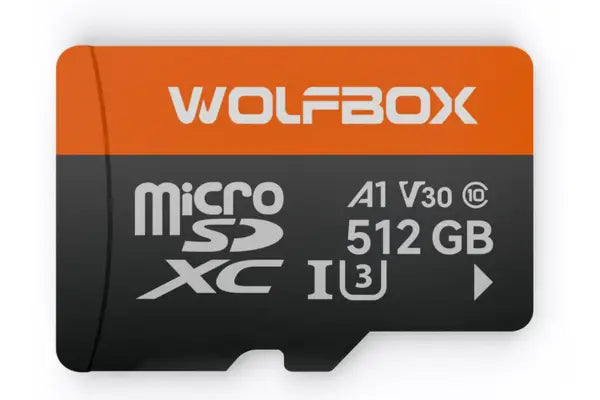
A broken SD card or one that doesn't work with the camera is a common cause of dash cam problems. Try a different, high-quality SD card if your camera is still freezing or not recording. Check that the card is from a well-known brand and has a Class 10 or U3 rating.
Your dash cam might act strangely if the power cable is broken or the connection is loose. Check your power cord for any damage. Make sure it is firmly connected to both your car's power port and your dash cam.
It's time to call customer service if you've tried everything and your dash cam still isn't working right. The WOLFBOX support team is ready to help you with more complicated problems or figure out if your device needs to be fixed or replaced.
You can fix a lot of problems on your own if you know how to reset dash cams. A full factory reset fixes bigger problems, while a soft reset fixes smaller ones. Formatting your SD card and other regular tasks will help your dash cam last longer and work well for you.
You can easily reset a dash cam without a physical button by going to the “Settings” menu on the screen and choosing “Factory Reset.”
When you do a factory reset, it usually only erases your settings and not the videos on your SD card. But it’s always a good idea to back up important files first.
You should only reset your dash cam if it isn’t working right. Formatting your SD card once a month is better for performance than doing it every month.
